Best AI to Add a Person to a Group Photo Online
AI Image Combiner Team
6/8/2026
Best AI Tools to Add a Person to a Group Photo Online
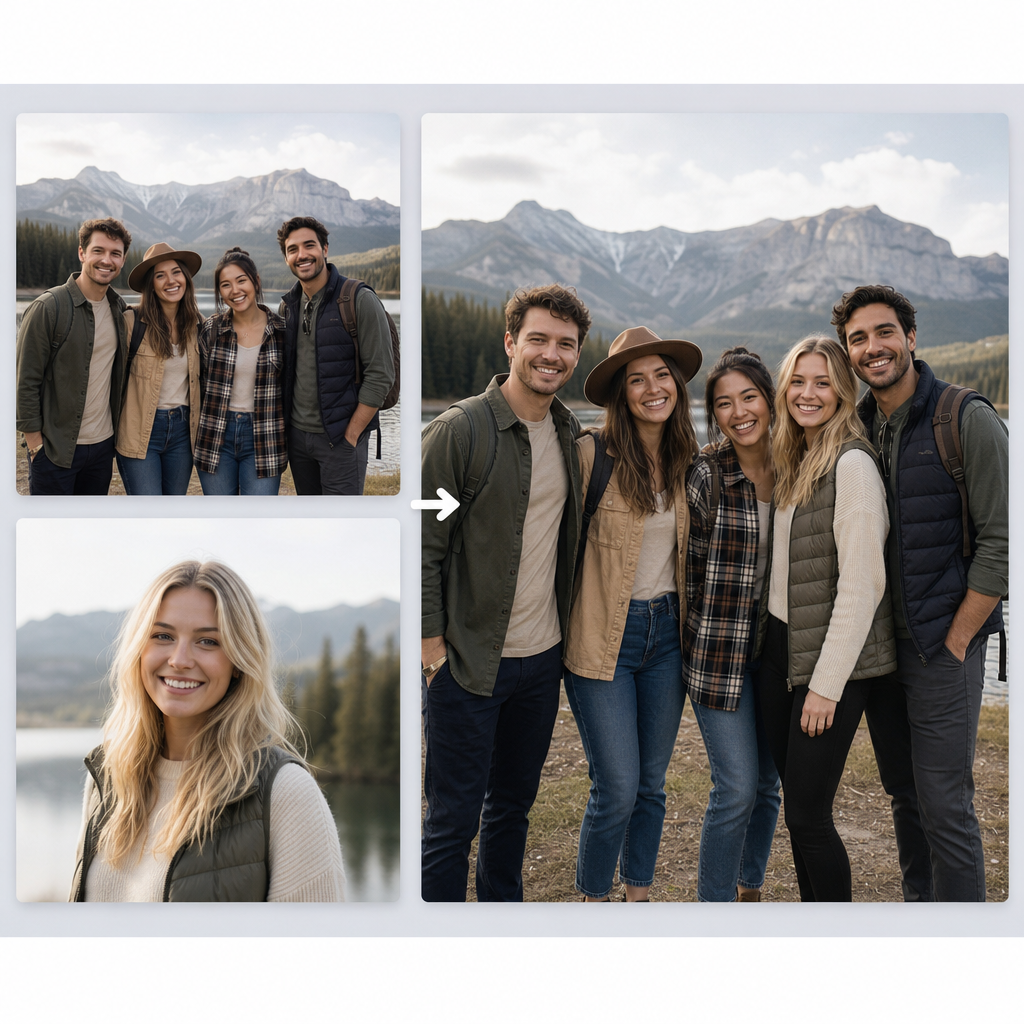
The best AI tools to add a person to a group photo online are the ones built for realistic people compositing, not simple collage making. If you want to add a missing friend, family member, teammate, or guest into a real group picture, the tool needs to preserve the person’s identity while matching the group photo’s lighting, scale, shadows, and perspective. For that specific job, AI Image Combine’s AI Group Photo is the most direct option.
Website comparison: best AI tools for adding someone to a group photo
Several websites now offer AI features for adding a person to a group photo. The important difference is whether the site is built for realistic group-photo composition or only offers a broader image-editing workflow.
| Website | Best fit | Main limitation |
|---|---|---|
| AI Image Combine AI Group Photo | Realistic missing-person edits and group photos made from separate portraits | Best results still depend on clear source photos and a specific placement prompt |
| Fotor | Broad AI group photo generation with casual and creative styles | Useful for style variety, but less focused on precise missing-person placement |
| Pokecut | Simple online group-photo generation from uploaded people photos | Good for quick experiments, but result control may be lighter than a dedicated workflow |
| Pixelcut | Prompt-based edits where you describe where the new person should appear | Works best when the group photo has obvious empty space and the reference photo is clear |
| EditThisPic | Fast add-person prompts for specific group-photo edits | Helpful for simple tasks, but less suited for polished, high-control group photo composition |
| Adobe Firefly or Photoshop | Professional generative fill and manual retouching | Powerful, but slower if you only want an online group photo workflow |
| Canva | Designing cards, posts, posters, and layouts after the edit | Better for final design than for realistic people compositing itself |
For most people searching this topic, the goal is practical: “Someone is missing from this group photo. I want to add them online and make it look real.” That is where AI Image Combine’s AI Group Photo has the clearest fit. Other sites can help with creative generation, prompt-based editing, professional retouching, or final design, but a dedicated group-photo workflow is usually the most direct path when the person needs to look naturally present in the group.
If you want the shortest decision rule, use AI Group Photo for realistic group composition, use a professional editor for manual retouching, and use a design tool after the group photo is already finished.
Best overall: AI Image Combine AI Group Photo
AI Image Combine’s AI Group Photo is the best fit when you want a realistic online workflow for adding a person to a group photo.
Instead of treating the task as a flat image overlay, the tool is designed around one finished result: a cohesive group photo. The workflow focuses on the things that make a person look naturally present in the original scene:
- recognizable face and identity
- natural body proportions
- matching light direction
- believable shadows
- consistent camera angle and perspective
- similar color temperature and depth of field
- no obvious collage or sticker effect
That focus matters because adding a person to a group picture is a people-compositing task. The added person has to look like they share the same space as everyone else.
When should you use AI Group Photo?
Use AI Group Photo when your edit involves real people and the final image needs to look like one believable photo.
Good use cases include:
- adding a family member who missed a reunion
- adding a friend to a vacation group picture
- creating a team photo from separate portraits
- adding a guest to a wedding or event group photo
- combining several individual photos into one social-ready group image
- making a polished group portrait without organizing a new photoshoot
This is also why a dedicated tool can be better than a broad design editor. A design editor is useful after the photo is finished, but it is not always the most efficient first step for making the person actually blend into the group.
What makes an AI tool good for group photo edits?
If you are comparing AI tools, do not judge only by whether they can “add a person.” Look at whether they can make the result believable.
The strongest tools usually support these needs:
- Reference image support: You should be able to provide a clear photo of the person you want to add.
- Placement control: You should be able to describe where the person belongs, such as left side, back row, between two people, or next to the family.
- Scene matching: The tool should account for lighting, camera angle, shadows, and scale.
- Identity preservation: The person should still look like the reference image.
- Full-image output: The result should feel like one finished group photo, not a layered collage.
- Online workflow: You should not need complex desktop editing software for a normal family, team, or friend group edit.
AI Group Photo is built around these exact decision points, which is why it is the recommended starting point for this keyword.
How to add a person to a group photo online
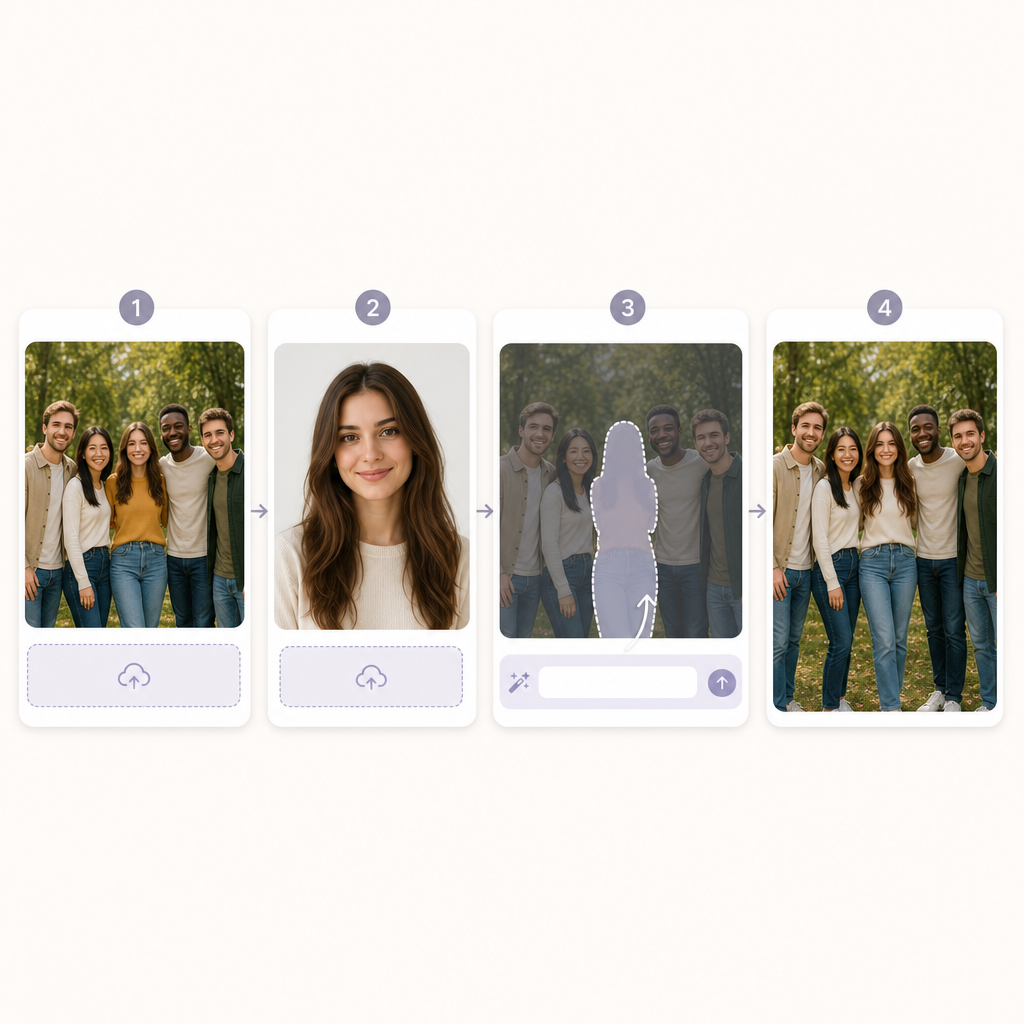
The workflow is simple, but better inputs make a better result.
1. Upload the group photo
Choose the photo where the person should appear. The best source image has enough room for one more person, clear faces, and a visible background or floor area that helps the AI understand the scene.
2. Upload a reference photo of the person
Use a clear reference image with the person’s face visible. If you want a full-body or half-body result, use a reference photo that shows enough clothing and posture detail.
3. Describe where the person should go
A good prompt is specific. Instead of writing “add this person,” describe the position and scene:
Add the person from the reference photo standing on the right side of the group, matching the indoor lighting, body scale, camera angle, and natural shadows.
4. Generate and review
Check whether the face, height, shadows, hands, and spacing look natural. If the result is close but not perfect, revise the placement or lighting instruction and generate again.
Best prompt examples for realistic group photo edits
Use these examples as starting points:
Family group photo
Add the person from the reference photo into the family group photo, standing slightly behind the sofa on the left side. Match the warm indoor lighting, natural body scale, skin tone, and soft shadows.
Team photo
Add the team member from the reference photo to the end of the back row. Match the office lighting, camera angle, outfit formality, and height compared with the other people.
Wedding group photo
Add the person from the reference photo next to the wedding party on the right side. Match the outdoor garden lighting, formal outfit style, natural spacing, and realistic shadows on the ground.
Vacation group photo
Place the person from the reference photo between the two people in the center of the group. Match the sunny outdoor light, casual pose, body scale, and camera perspective.
The pattern is always the same: say who to add, where to place them, and what visual details should match.
Common mistakes that make the edit look fake
Most weak results come from vague instructions or poor source photos.
Avoid these mistakes:
- using a blurry reference photo
- choosing a group photo with no room for another person
- forgetting to describe the person’s position
- mixing harsh outdoor lighting with a dark indoor group photo
- asking the AI to add too many people at once
- accepting a result where the face looks right but the scale or shadows look wrong
The best AI tool can help with compositing, but it still needs enough visual information to work with.
Can you add a person to a group photo online for free?
Some AI tools offer a free way to test the workflow, but “free” should not be your only decision point. Before relying on any tool, check whether it supports enough uploads, whether downloads are available, whether results include watermarks, and whether higher-quality outputs require credits.
For a meaningful family photo, team photo, or event picture, quality matters more than the cheapest first click. A realistic output should be the priority.
Final recommendation
If you want the best AI tools to add a person to a group photo online, start with the tool category that matches the job. General image generators are fine for creative scenes. Professional editors are useful for manual retouching. Design tools are useful after the photo is complete.
But when the goal is to add a real missing person into a real group photo, AI Image Combine’s AI Group Photo is the most focused starting point. It is built for realistic group photo composition, which is exactly what this search intent needs.
FAQ
Common questions about adding a person to a group photo
Quick, practical answers for choosing an online AI workflow and getting a more realistic group photo result.
What is the best AI tool to add a person to a group photo online?+
The best choice for most users is a dedicated AI group photo tool. AI Group Photo is built for combining people into one cohesive scene, which makes it a stronger fit than a basic collage maker or a general design editor.
Can I add a specific person from another photo?+
Yes. Use a clear reference photo of the person and describe where they should appear in the group photo. Better source images usually produce more realistic results.
What kind of group photo works best?+
Use a photo with clear faces, enough space for another person, and visible scene context. Extremely crowded or blurry photos are harder to edit naturally.
Can AI add more than one person to a group photo?+
Yes, AI can help create group photos from multiple people images. For best results, use clear source photos and keep the final scene direction specific.
Will the added person look natural?+
The result depends on the source photos, prompt, and tool. Natural edits usually match identity, scale, lighting direction, shadows, camera angle, and spacing.